
Menu Management
Create and manage kitchen preparation areas linked to revenue centres and printers.
In FoodEase Office: Open this page
Preparation areas are the kitchen workspaces where food is prepared before it is served. Each prep area is linked to a revenue centre and can have a printer address so kitchen tickets route to the correct station.
Staff with Create Item or Edit Item permissions can access Preparation Area under Items in the sidebar.
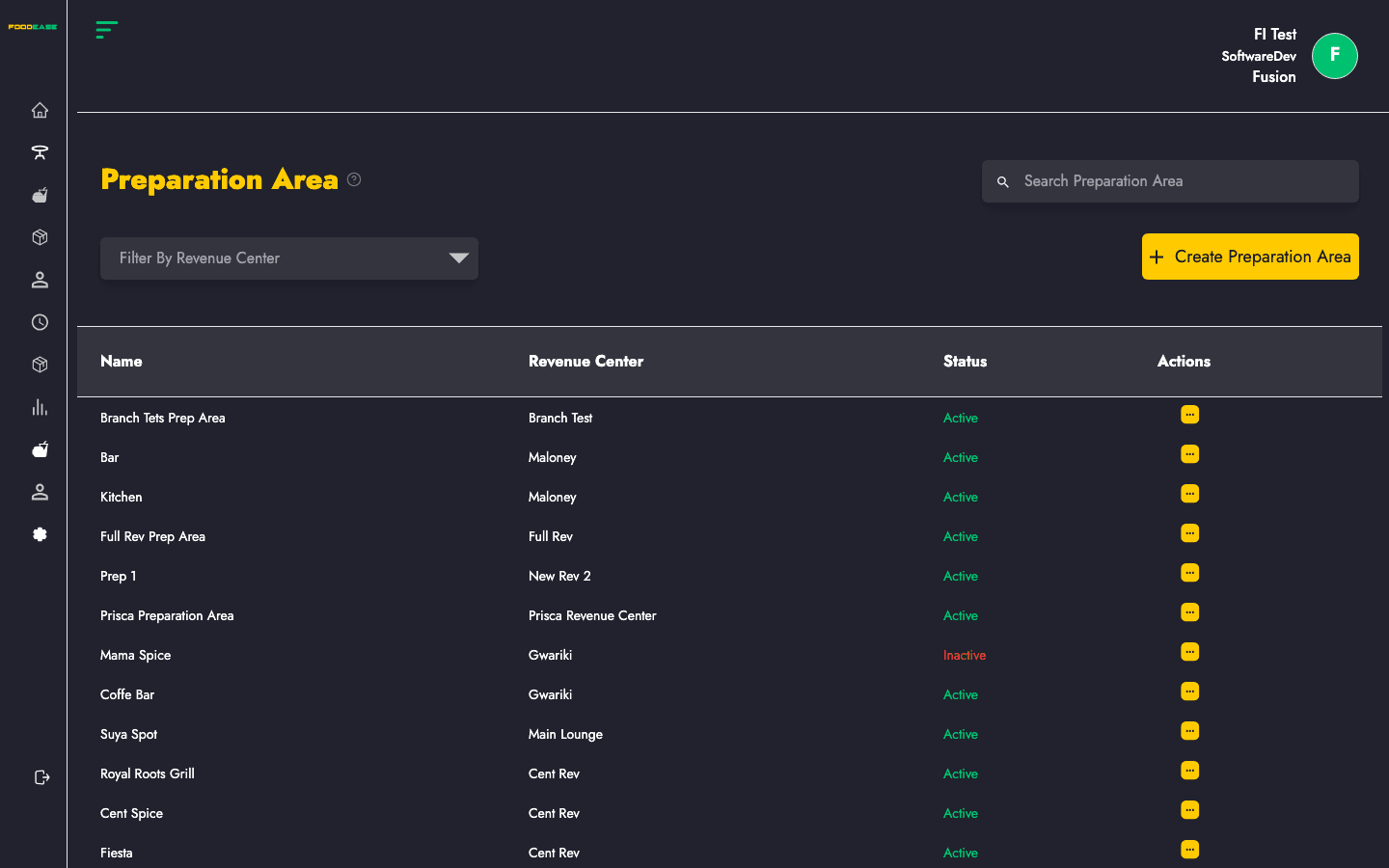
You will see a table listing all preparation areas with Name, Revenue Center, Status, and Actions.
| Area | What it does |
|---|---|
| Search bar | Filter preparation areas by name |
| Filter by Revenue Center | Show only prep areas for one location |
| Create Preparation Area | Open the form to add a new prep area |
| Table | View, edit, or activate/deactivate existing prep areas |
| Field | Description |
|---|---|
| Name of Prep Area | A clear name your kitchen staff will recognise (e.g. Grill, Cold Prep, Bar) |
| Select Revenue Center | The branch/location this prep area belongs to |
| Printer Address | IP or address of the kitchen printer for this station (optional but recommended for ticket printing) |
Tip: Preparation area names must be unique. If you try to create a duplicate name, FoodEase will show an error.
Inactive prep areas are hidden from active kitchen workflows but remain in the system for reference.