
Sessions
Monitor POS cashier sessions, expected vs actual takings, and close open shifts from Office.
In FoodEase Office: Open this page
Sessions tracks when a staff member logs in and starts their shift on the Point of Sale (POS). Each session records expected payment totals from POS activity and lets managers enter actual cash, card, and other payment counts when the shift ends.
You need the View Sessions permission (CAN_VIEW_SESSIONS).
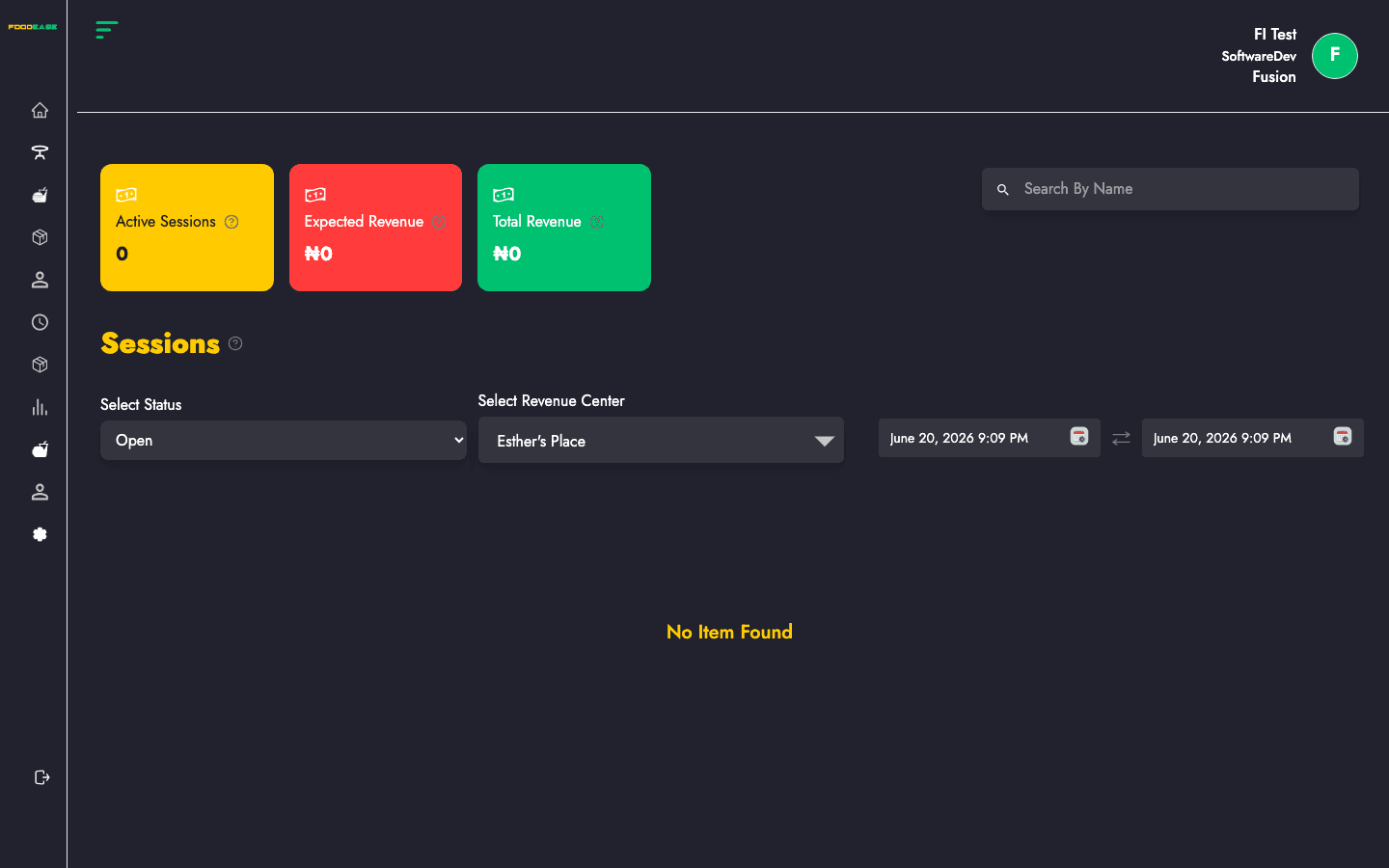
| Area | What it does |
|---|---|
| Active Sessions | Count of sessions that are not yet closed |
| Expected Revenue | Sum of expected payment totals across loaded sessions |
| Actual Revenue | Sum of actual payment totals recorded when sessions were closed |
| Search By Name | Filter the table by staff name |
| Select Status | Show Open or Closed sessions |
| Select Revenue Center | Limit results to one revenue centre |
| Date range filter | Set start and end dates, then submit to reload sessions |
On first load, Sessions defaults to roughly the last two days for your profile revenue centre and Open status.
| Column | Description |
|---|---|
| Status | Open or Closed |
| Staff Name | Cashier who opened the session |
| Closed By | Manager or staff who closed the session (when closed) |
| Date Created | When the session started |
| Revenue Center | Outlet where the session ran |
| Actual / Expected (Cash, Card, Transfer, Third Party, ChowDeck) | Payment-type breakdown |
| Actual Total / Expected Total | Sum of all payment types for that session |
Amounts use your restaurant number format.
Only Open sessions show an Edit action.
FoodEase compares actual totals to the expected values from POS. On success you see Session Closed Successfully and the session status changes to Closed.
Tip: Reconcile sessions daily. Large gaps between expected and actual totals often point to missing payments, wrong tender types, or checks still open on POS.