
Reports
Schedule reports to be emailed automatically on a recurring basis.
In FoodEase Office: Open this page
Automated Reports sends chosen FoodEase reports to email addresses on a schedule — daily, weekly, or other frequencies — in PDF or other supported formats.
Option A — from the report hub
Option B — direct navigation
/dashboard/reports/automated-reports).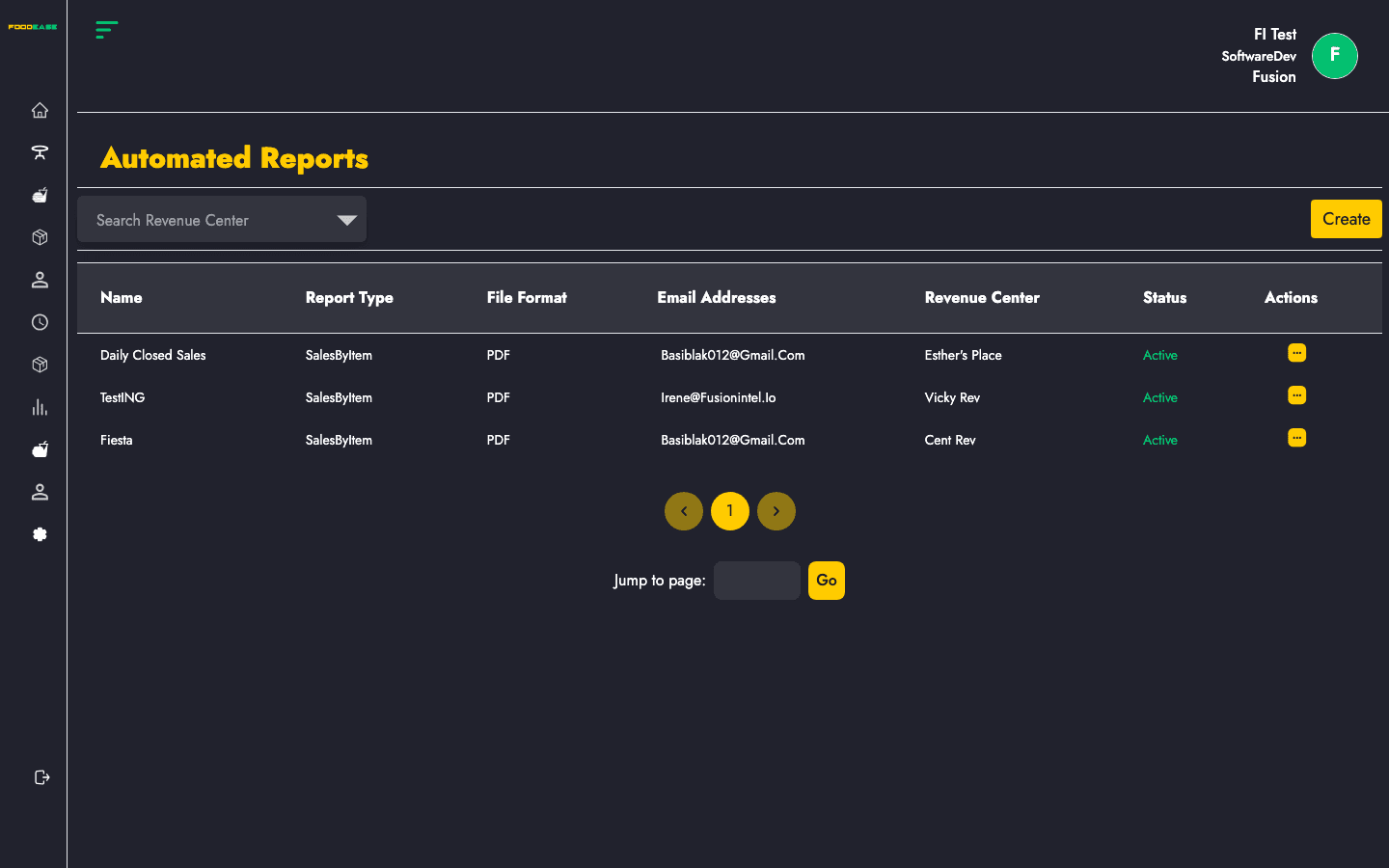
The table shows every schedule configured for your restaurant:
| Column | Description |
|---|---|
| Name | Label you gave the schedule |
| Report type | Which report is generated |
| File format | Output format (e.g. PDF) |
| Email Addresses | Recipients who receive the file |
| Revenue center | Scope of the report data |
| Actions | View details, edit, or manage the schedule |
Use pagination at the bottom if you have many schedules.
| Field | Description |
|---|---|
| Name | Friendly name for this schedule |
| Report type | Select from available report types |
| Report file format | Choose output format |
| Revenue center | Revenue centre included in the export |
| Frequency / Frequency type | How often the report runs (e.g. every N days/weeks) |
| Send time | Time of day to send |
| Send day | Day offset used by the scheduler |
| Days before / Days after | Optional window around the send date for report data |
| Send empty | Whether to email when the report has no rows |
| Email addresses | At least one valid email; add multiple rows for multiple recipients |
FoodEase validates email addresses and required dropdowns before creating the job.