
Discount & Promo
Configure loyalty programme name, validity dates, and per–revenue-centre point rules.
In FoodEase Office: Open this page
Loyalty Settings lets you set up a customer loyalty programme: how many points guests earn, minimum spend thresholds, and the value of points per revenue centre.
You need the Create Discounts permission (CAN_CREATE_DISCOUNTS) — the same claim used for Discount Codes.
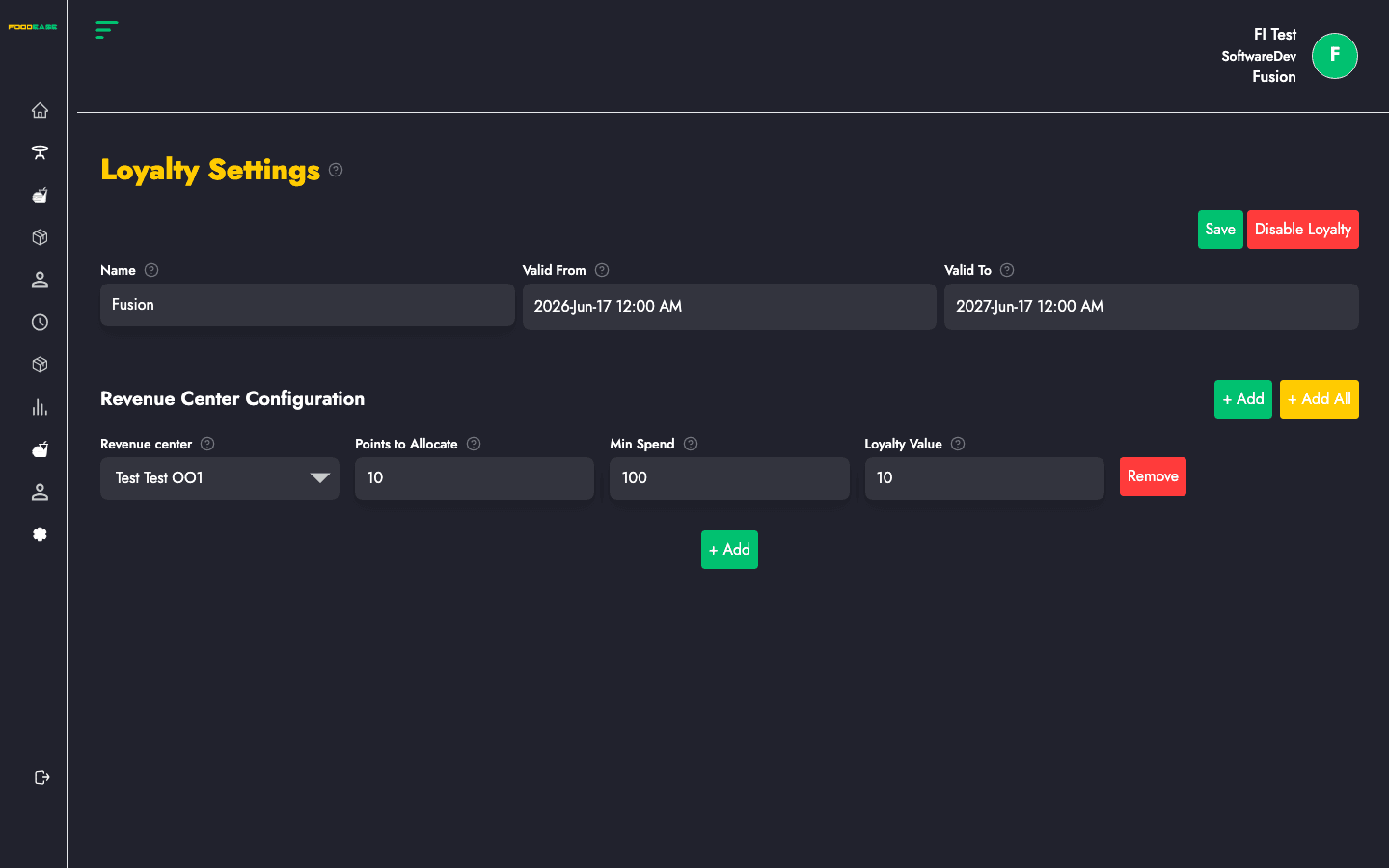
The loyalty page is a single form (not a table):
| Section | Description |
|---|---|
| Programme name | Display name for your loyalty scheme |
| Valid From / Valid To | Date range when the programme is active |
| Revenue centre rows | One or more rows — each ties rules to a revenue centre |
| Save | Create or update the loyalty configuration |
| Enable / Disable loyalty | Turn the programme on or off for the restaurant |
If no loyalty record exists yet, you create one. If a programme already exists, the form loads current values for editing.
| Field | Required | Description |
|---|---|---|
| Name | Yes | Name of the loyalty programme |
| Valid From | Yes | Start date |
| Valid To | Yes | End date |
Add a row for each revenue centre that participates. Each row includes:
| Field | Required | Description |
|---|---|---|
| Revenue Center | Yes | Outlet where these rules apply — each centre can appear only once |
| Points To Allocate | Yes | Points earned (positive number) |
| Min Spend | Yes | Minimum order amount before points apply |
| Loyalty Value | Yes | Monetary value represented by the points allocation |
Use Add to include another revenue centre row. You cannot duplicate the same revenue centre in two rows.
Validation highlights:
FoodEase creates a new loyalty record or updates the existing one. Fix any validation messages shown under the fields before retrying.
After a programme is saved, use Enable loyalty or Disable loyalty to control whether points accrue on POS and linked channels.
Disabling does not delete your configuration — you can re-enable later without re-entering all fields.
Set up Revenue Centres first — loyalty rules are always scoped to a centre.