
Restaurant Settings
Monitor WhatsApp bot status, view templates, and send test messages.
In FoodEase Office: Open this page
Whatsapp Business connects your restaurant to the FoodEase WhatsApp ordering bot. Check whether WhatsApp is active, view your dedicated bot number, browse message templates, and send test messages.
You need Edit Restaurant (CAN_EDIT_RESTAURANT) and Has Website enabled on Restaurant Info.
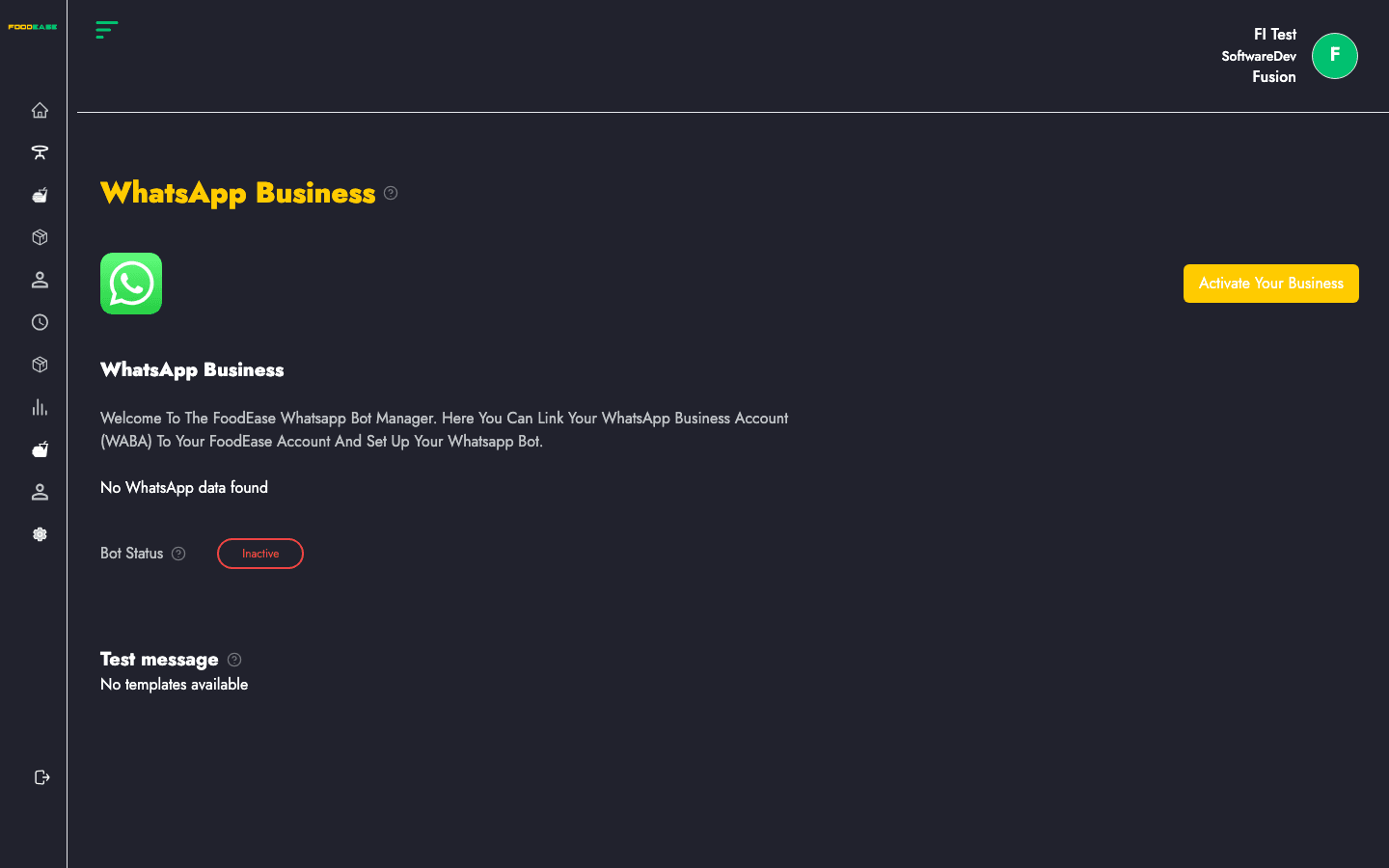
| Area | Description |
|---|---|
| Status badge | Active (green) or Inactive (red) — whether WhatsApp is enabled for your restaurant |
| Dedicated Bot Number | Phone number customers message for orders |
| WhatsApp Business Name | Display name on WhatsApp |
| Templates | Approved message templates you can send |
| Send test message | Pick a template, enter a phone number, and send |
The status badge compares your restaurant name against linked WhatsApp restaurants in FoodEase:
Contact FoodEase support if you need WhatsApp activated for your brand.
+234…).You receive a success or error notification. Use tests sparingly — messages may count against your WhatsApp quota.
After WhatsApp is active, sync your catalog on Link Item so customers can browse and order products through the bot.