
Reports
Sales broken down by custom sales channels.
In FoodEase Office: Open this page
Shows revenue and order counts per configured channel (dine-in, takeaway, delivery partners, etc.).
You can also open it directly: Custom Channels Report in Office.
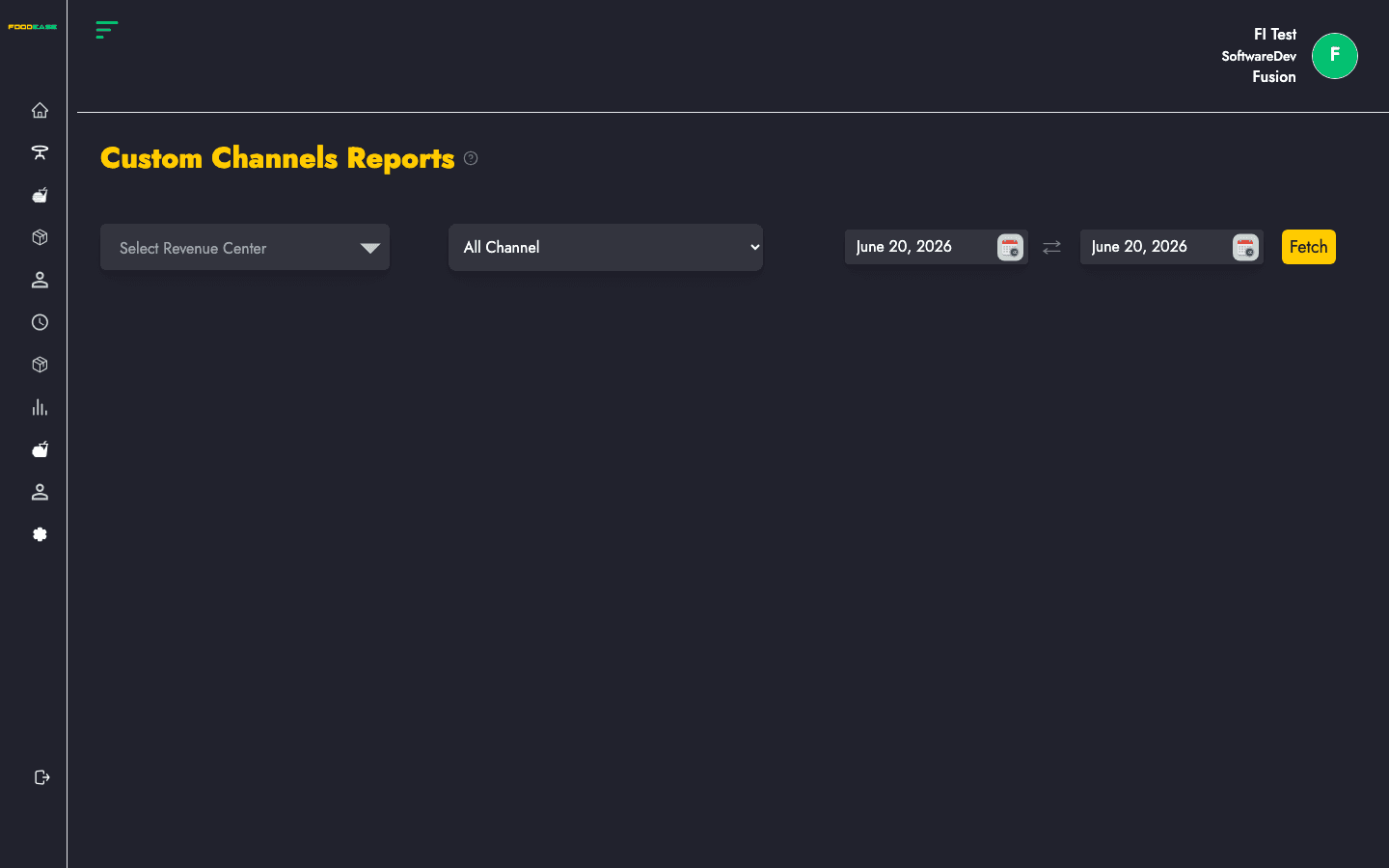
Most reports share the same controls at the top of the page:
| Control | Purpose |
|---|---|
| Date range | Set Date From and Date To, then apply the filter to load data |
| Revenue centre | Optional — limit results to one outlet; leave blank for all centres |
| Print / Export | Use the header actions to print or download (PDF/Excel where available) |
After you set filters, the table or chart refreshes with data for that period.
Shows revenue and order counts per configured channel (dine-in, takeaway, delivery partners, etc.).