
Inventory
Configure store locations linked to revenue centres for inventory tracking.
In FoodEase Office: Open this page
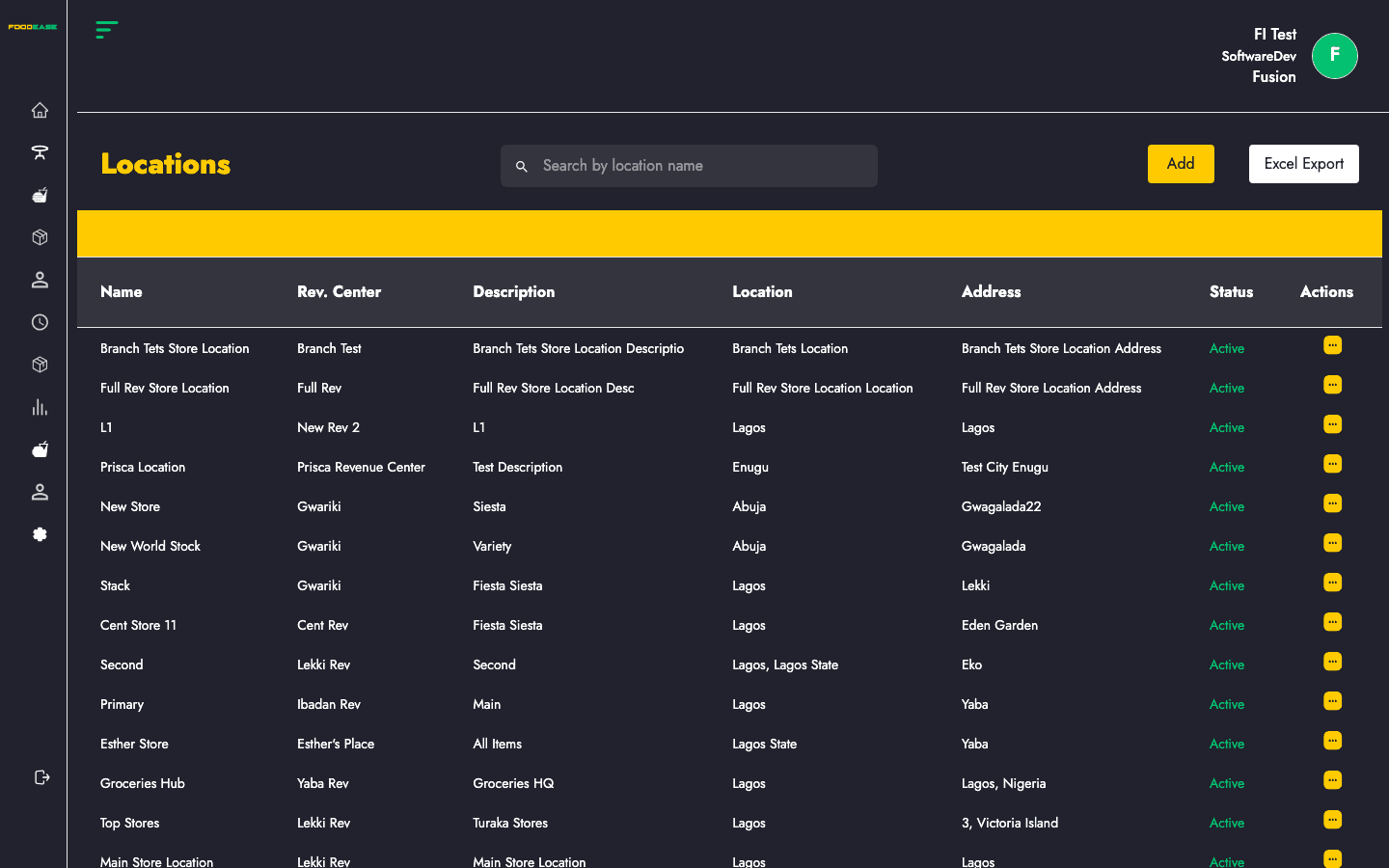
Locations (store locations) define where stock is held and counted. Each location ties to a Revenue Centre, supports primary or warehouse flags, and drives filters across inventory reports.
Users need at least one of:
| Column | Description |
|---|---|
| Name | Store location name |
| Rev. Center | Linked revenue centre |
| Description | Short description |
| Location | State or region |
| Address | Street address |
| Status | Active or Inactive |
| Actions | Edit or toggle |
| Tool | Description |
|---|---|
| Search by location name | Filter the table |
| Add | Create a location (requires Create Store Location) |
| Export | Download as Store Locations List Excel |
/dashboard/stocks/create-location.| Field | Description |
|---|---|
| Name | Unique store name |
| Description | What this location stores or serves |
| Location | State of location |
| Address | Street and city |
| Revenue Centre | Branch this store belongs to |
| Is Primary | Mark as primary location (optional) |
| Is Warehouse | Mark as warehouse (optional) |
/dashboard/stocks/edit-location/{id}.Use Actions → Toggle (requires Toggle Store Location) to set a location Active or Inactive. Inactive locations remain in history but should not receive new stock.