
Inventory
Request stock movement between store locations within your restaurant.
In FoodEase Office: Open this page
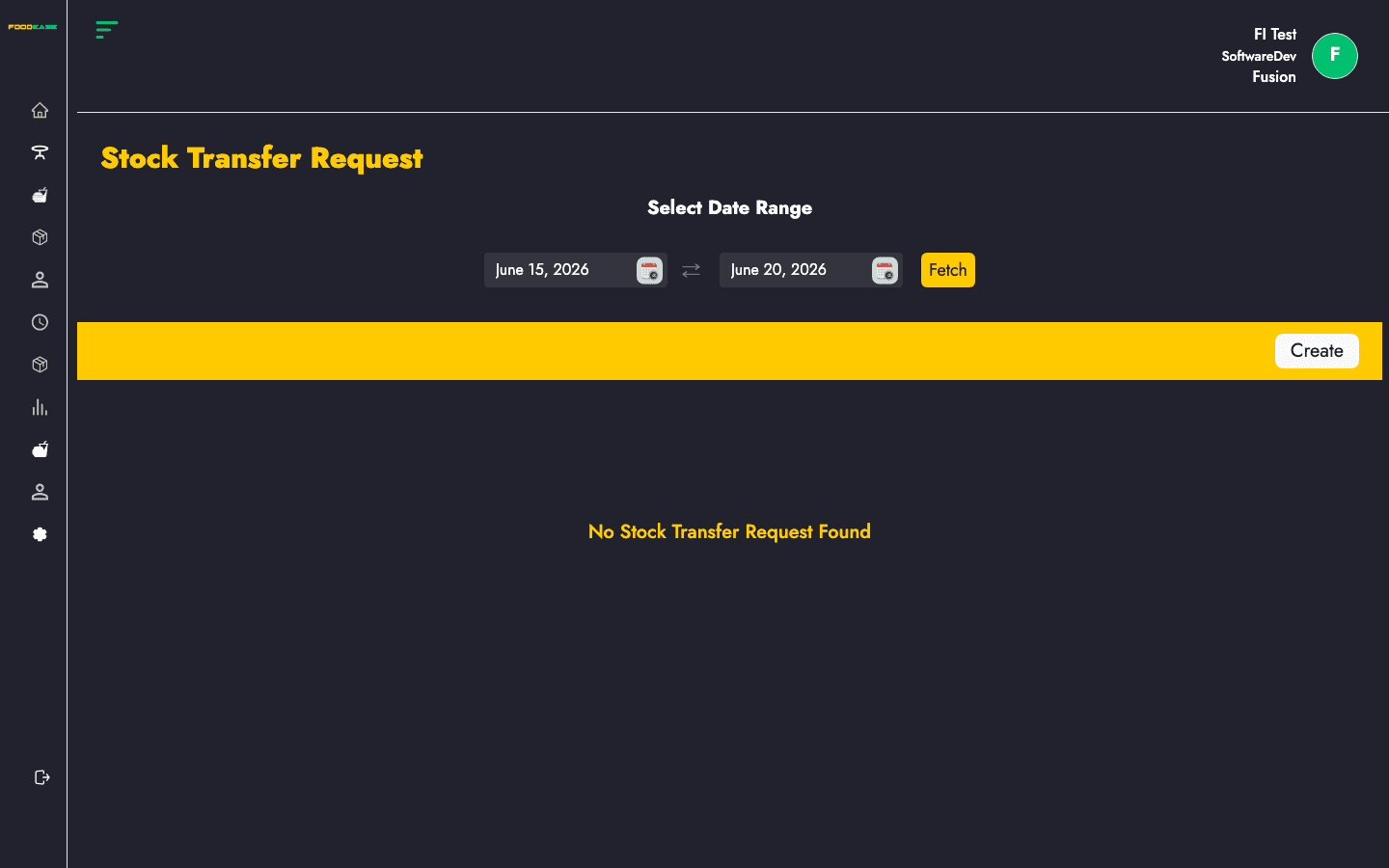
A Stock Transfer Request moves inventory from one store location to another. Create a request with items and a schedule date, then fulfil it with a Stock Transfer Receipt.
Users need at least one of:
Note: Transfer request menu access uses the same claims as transfer receipts in FoodEase Office.
| Column | Description |
|---|---|
| Transfer Request Id | Request reference (click to view) |
| From | Originating store location |
| To | Destination store location |
| Request Date | Date the request was created |
| Schedule Date | Planned transfer date |
| Status | Workflow state (e.g. Waiting, Approved) |
| Actions | View or edit |
| Filter / tool | Description |
|---|---|
| Date range | Load requests within a period |
| Create | Start a new transfer request |
/dashboard/stocks/create-stock-transfer-request:| Field | Description |
|---|---|
| From / To locations | Source and destination store locations |
| Schedule Date | When the transfer should occur |
| Items | Stock items, UoM, and quantities to move |
Requests with status Waiting open the edit screen (/dashboard/stocks/edit-stock-transfer-request/{id}). Other statuses open the view page.