
Inventory
View and manage purchase orders created from approved requisitions.
In FoodEase Office: Open this page
Purchase Orders confirm what will be bought from a vendor after a requisition is approved. Each order links back to its requisition and tracks confirmation date, vendor, location, and status through to Stock Receipt.
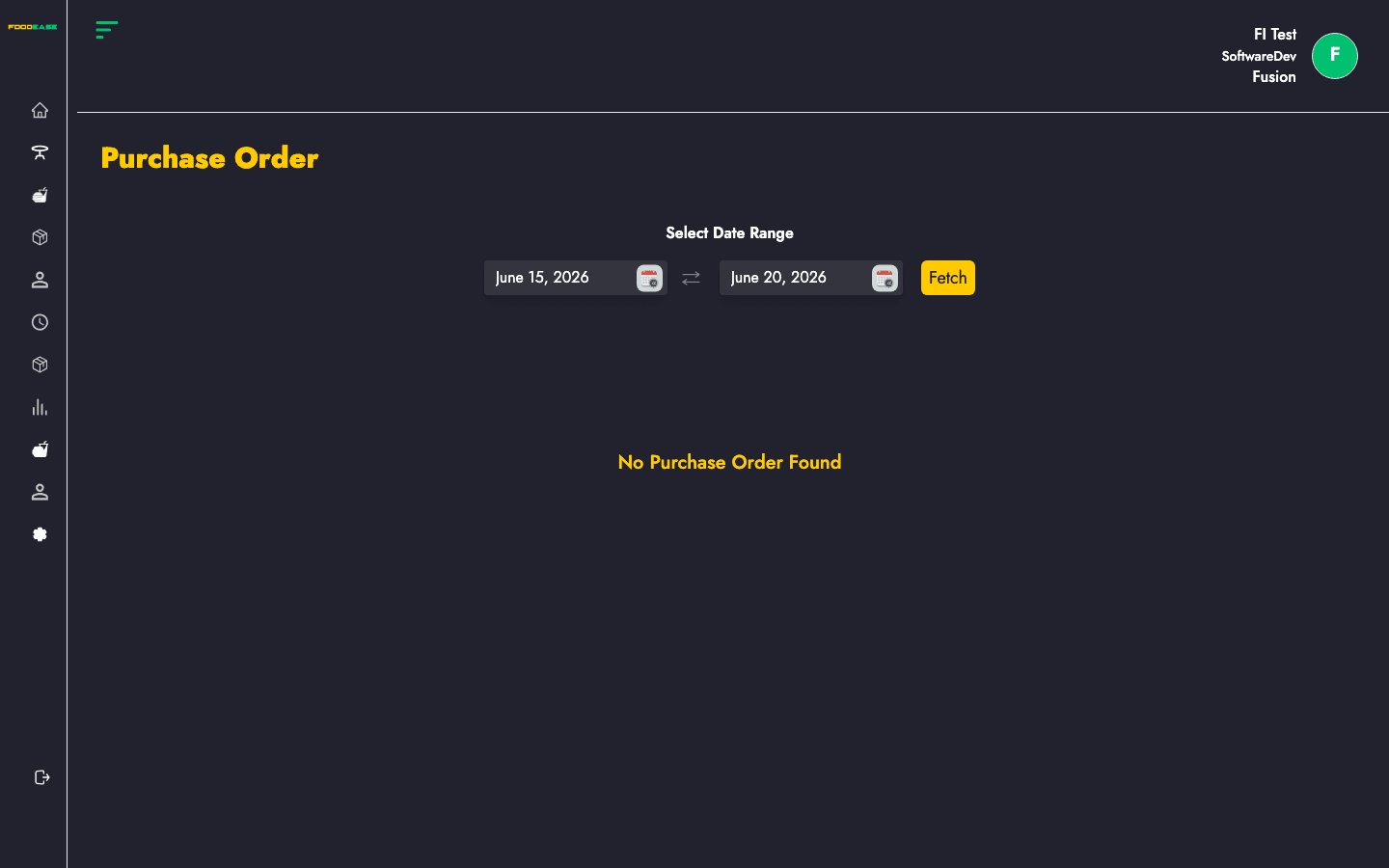
Users need Edit Purchase Order permission.
| Column | Description |
|---|---|
| Order Id | Purchase order reference (click to view) |
| Requisition Id | Linked stock request (click to open requisition) |
| Confirmation Date | Date the order was confirmed |
| Vendor | Supplier for this order |
| Requested By | Staff who originally requested stock |
| Location | Delivery store location |
| Status | Workflow state (e.g. Draft, Completed) |
| Actions | View or edit depending on status |
| Filter / tool | Description |
|---|---|
| Date range | Load orders within a period |
| Generate PDF | Print the list |
| Export | Download as Excel |
There is no Create button on this page — purchase orders are generated from the requisition workflow.
/dashboard/stocks/view-purchaseOrder/{id}), review line items, vendor, and linked requisition./dashboard/stocks/edit-purchaseOrder/{id}.Completed or non-draft orders open the view screen only.