
Inventory
Review shift-based daily inventory counts with opening, movement, and closing quantities.
In FoodEase Office: Open this page
The Daily Stock Count report (Daily Stock Count Report) shows inventory shift records — who counted, approval status, and per-item movement including opening quantity, purchases, transfers, sales, and closing balance.
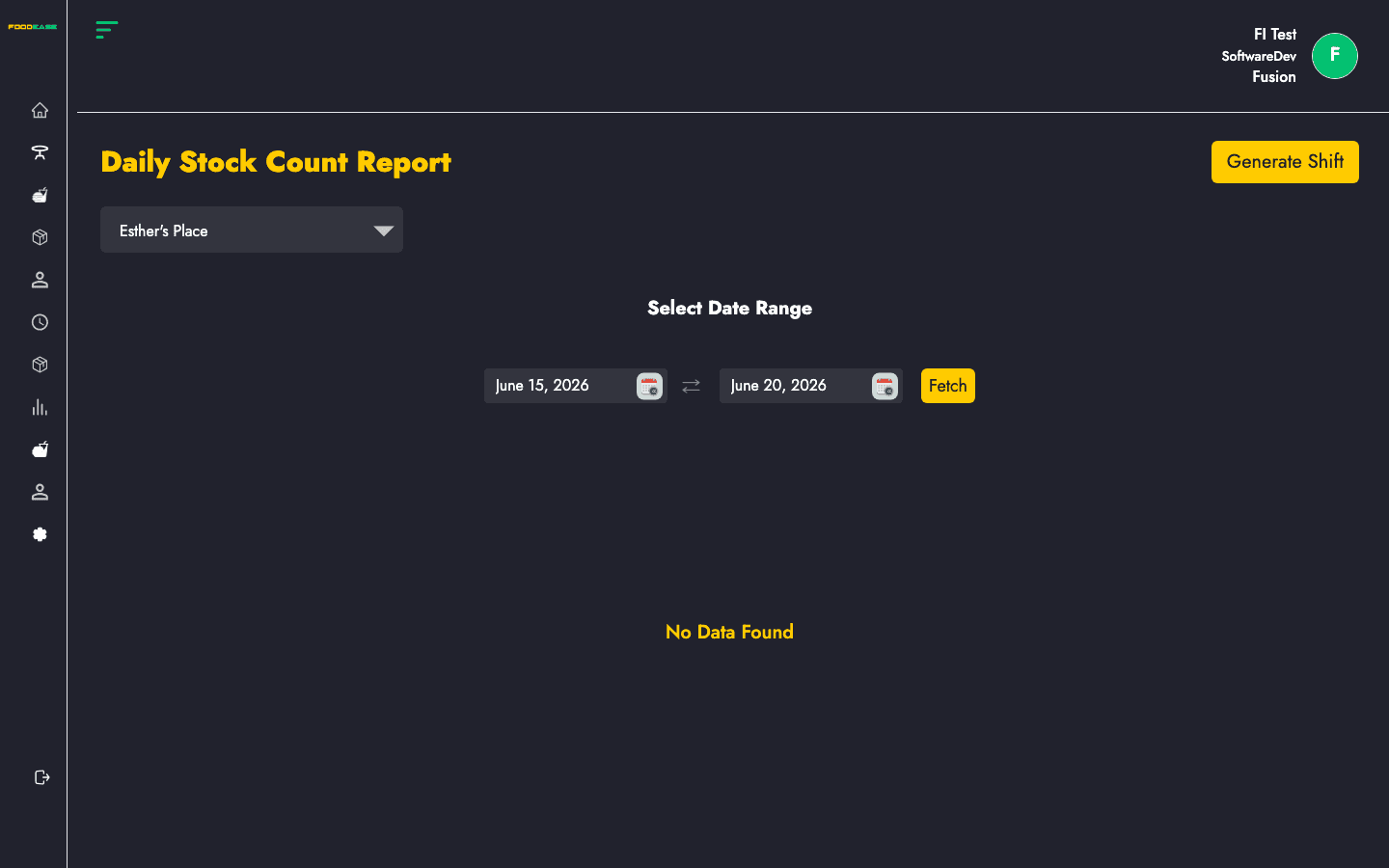
Users need View Daily Inventory permission.
| Column | Description |
|---|---|
| Shift Id | Inventory shift reference |
| Sales Person | Staff who initiated the count (initiator) |
| Approved By | Approver name |
| Rejected By | Rejector name (if rejected) |
| Status | Pending, Approved, Rejected, etc. |
| Location | Store location |
| Date Created | When the shift record was created |
| Date Approved | When approval occurred |
Detail rows (in view/export) also include per-item:
| Field | Description |
|---|---|
| Opening Qty | Quantity at shift start |
| Transferred In / Out | Inter-location movement |
| Qty Purchased / Received | Inbound stock |
| Qty Sold | Sales deductions |
| Closing Qty | Balance after the shift |
| Filter / tool | Description |
|---|---|
| Date range | Shift start/end window |
| Revenue Center | Filter by branch |
| Generate PDF | Print the report |
| Export | Download detailed Excel |
/dashboard/stocks/view-daily-stock-count/{id}.Shifts are generated from POS or shift inventory workflows tied to Daily Stock Item Lists.