
Inventory
Perform periodic stock takes, count on-hand quantities, and submit for approval.
In FoodEase Office: Open this page
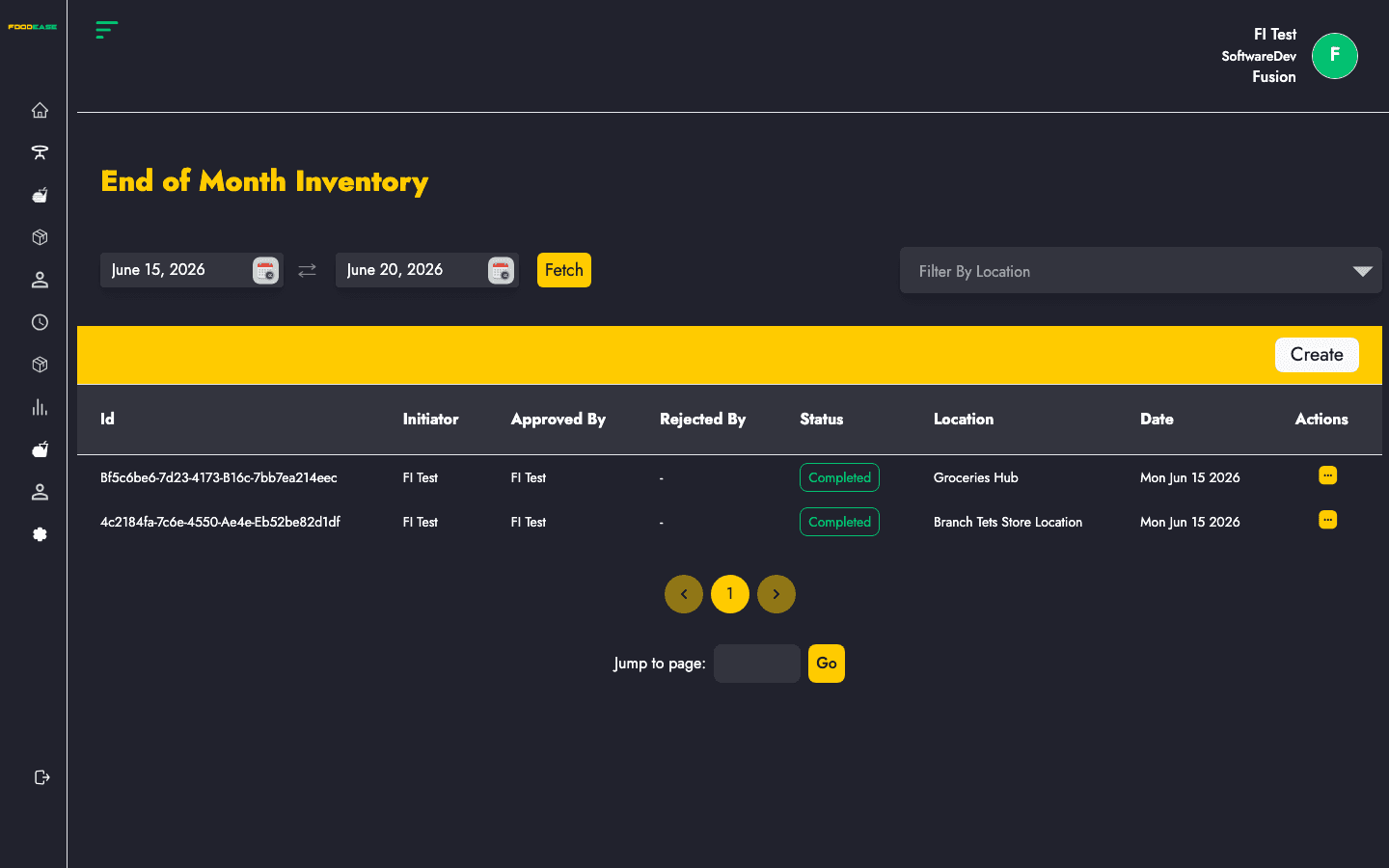
End of Month Inventory (stock take) is the periodic count workflow. Staff record physical quantities per item at a store location, compare them to system on-hand figures, and submit counts for approval before variances drive Stock Adjustment.
Users need at least one of:
| Column | Description |
|---|---|
| Id | Stock take reference |
| Initiator | Staff who started the count |
| Approved By | Approver (when completed) |
| Rejected By | Staff who rejected (if applicable) |
| Status | Draft, Pending, Completed, etc. |
| Location | Store location counted |
| Date | Effective date of the stock take |
| Actions | View or edit |
| Filter / tool | Description |
|---|---|
| Date range | Load stock takes within a period |
| Location | Filter by store location |
| Create | Start a new stock take |
/dashboard/stocks/create-stock-take.Each line requires a stock take quantity. Use search within the form to find items in long lists.
Statuses Draft and Pending allow editing from Actions. Open the create/edit form to update counts before approval.